(Image to Text Converter BY FDM AI) Picture this: You’re staring at a five-page scanned document, a crumpled business receipt, or a snapshot of a whiteboard covered in a brilliant team brainstorming session. You need that information in your digital workspace, and you need it now.
Your first instinct might be to crack your knuckles and start typing it out character by character.
Stop right there.
Manually retyping data is a massive time-sink, a shortcut to a wrist cramp, and an easy way to introduce typos into critical work. Whether you need to log vendor details, compile research, or grab a serial number from a quick screenshot, there is a much faster way. By using a modern image to text workflow, you can automate this grunt work entirely.
Most people know they can use a basic tool to pull a quick caption off a social media screenshot. But the truth is, the average professional is barely scratching the surface of what modern Optical Character Recognition (OCR) can do. You don’t need clunky, expensive enterprise software to bridge the gap between physical paper and your digital files. A robust, browser-based image to text converter online can handle everything from clean layouts to complex documents in seconds.
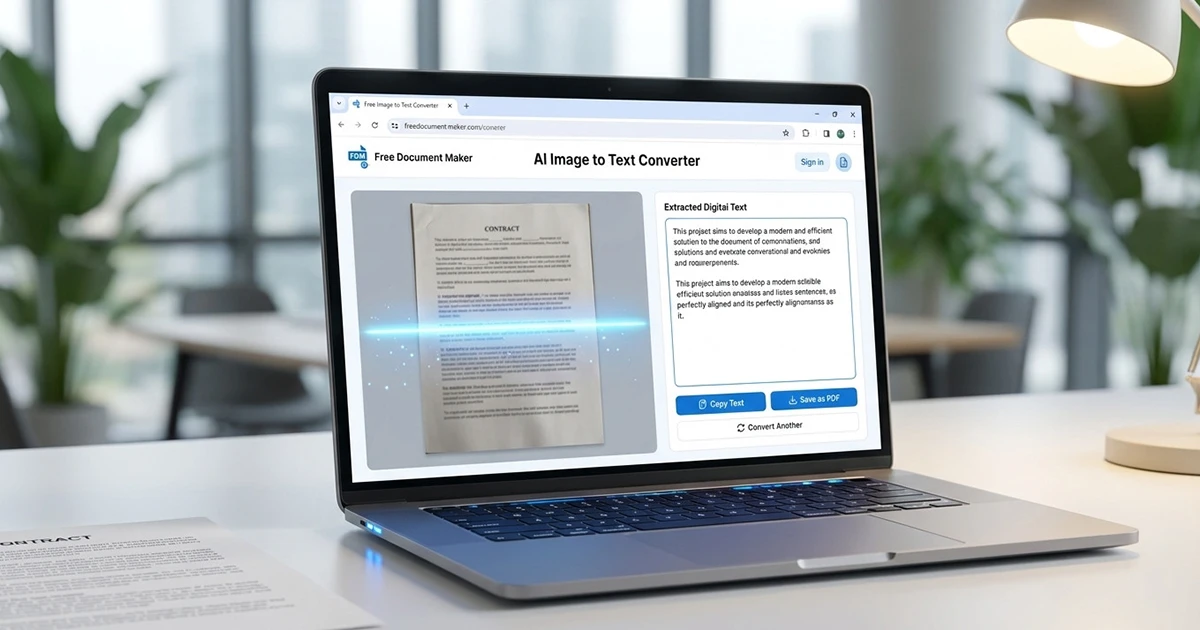
If you are looking for a reliable, zero-install solution that respects your data privacy, the FDM AI Image to Text Online Converter lets you convert image to text with 100% private, local OCR. Because the processing happens entirely right in your browser with zero server uploads, it's the perfect secure method to extract text from image files, invoices, or private notes.
Once you know how to leverage a dependable text extractor, you can easily turn a photo to text or run a quick pic to text conversion on any device.
Ready to stop wasting time on manual data entry? Let’s dive into 5 clever ways to use an image to text free tool to streamline your daily operations and seamlessly copy text from image files directly to your clipboard.
1. Instantly Digitizing Handwritten Notes and Whiteboards
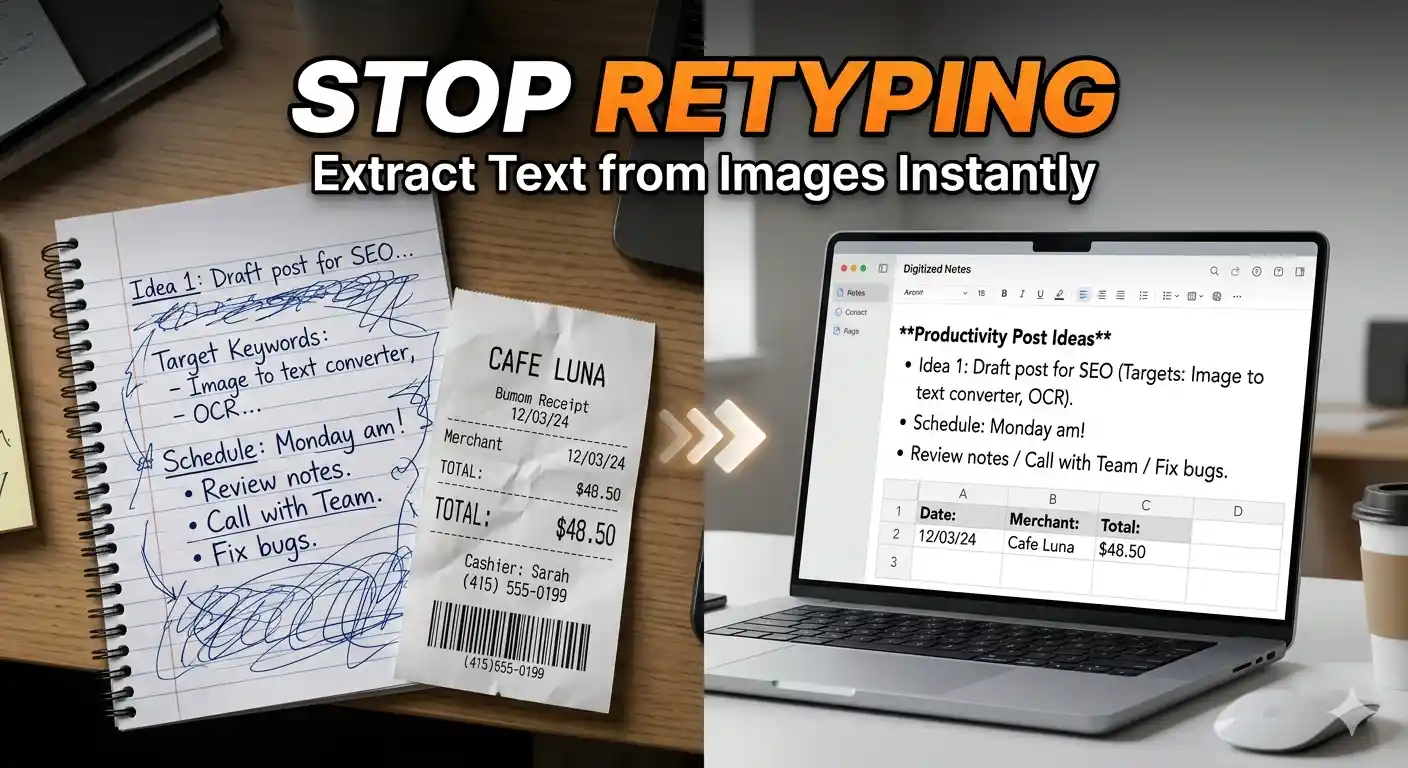
We’ve all been there: you finish a massive brainstorming session or a long lecture, and your notebook or whiteboard is covered in critical diagrams and scribbled text. Instead of spending twenty minutes transcribing those messy lines into a Google Doc, use a picture to text converter.
How it works: Take a clear photograph of your handwritten page. Drop it into an online text extractor.
Why it saves time: Modern OCR technology is incredibly sophisticated. It doesn’t just read clean Arial font; it can accurately translate human handwriting into editable, digital text.
The Workflow: Run your photo to text conversion, copy the output, and paste it straight into your project management app or digital notebook. Your handwritten thoughts are instantly searchable.
2. Automated Expense Tracking and Invoice Management
For freelancers, small business owners, and accounting teams, tracking expenses is a administrative nightmare. Keeping shoe boxes full of faded receipts or desktop folders filled with ambiguous image files (like IMG_8492.jpg) makes auditing impossible.
Streamline Your Accounting: Instead of manually inputting vendor names, line items, and grand totals into a spreadsheet, pass your receipt scans through an image to text converter online.
The Privacy Factor: When you deal with financial documents, you cannot risk uploading sensitive numbers to an unverified cloud server. Using a local browser tool like FDM AI allows you to safely extract text from image receipts because your financial data never leaves your device.
The Result: You can copy-paste exact figures instantly, entirely eliminating data-entry typos.
3. Turning Video Presentation Slides into Clean Markdown
If you regularly watch webinars, online courses, or YouTube tutorials, you know how frustrating it is when a presenter displays a slide packed with valuable data, code snippets, or quotes—but doesn't provide a download link for the deck.
The Screenshot Hack: Don't pause the video and frantically type down what's on the screen. Take a quick screenshot of the video player.
Extract Instantly: Throw that screenshot into an image to text free utility. Within two seconds, you can copy text from image layouts and dump it right into your personal notes app (like Notion or Obsidian).
Formatting Tip: Once you have the raw text, you can easily add simple hashtags (
#) or bullet points (*) to turn it into perfectly organized Markdown notes.
4. Translating Physical Books and Signage on the Go
Whether you are a student researching physical library books, a professional reading printed industry reports, or a traveler navigating foreign signage, typing out words you don't recognize is incredibly slow—especially if those words use a different alphabet.
The Quick Fix: Run a fast pic to text conversion on the page or sign.
Instant Translation: Once the image converter spits out the raw text string, you can copy it straight into a translation engine or a research document. You can extract paragraphs from physical books without ever needing to sit at a keyboard.
5. Building an Entirely Searchable Digital Archive
Imagine needing to find a specific quote, serial number, or legal clause from a document you received three months ago. If that document is saved as a basic image file, your computer's built-in search bar won't help you find it.
Create Searchable Data: Pass your legacy images and document screenshots through an online tool to convert image to text.
The Value Add: Save the text output alongside the original image or in a dedicated text file. Now, whenever you perform a quick
Ctrl + Fsearch on your computer, your system can crawl through the extracted words instantly, turning a messy archive into an organized database.
What to Look For in an Image to Text Tool
Not all web converters are built equal. When you are looking for the right tool to add to your daily productivity stack, keep these three criteria in mind:
Layout Retention: A poor converter will scramble paragraphs or read multi-column text completely out of order. Look for a tool that understands spacing.
Strict Privacy: Your documents are your business. Avoid tools that force you to upload your files to their remote servers where they could be stored or tracked.
Speed and Accessibility: The best tool requires no account creation, no subscriptions, and functions flawlessly on both desktop and mobile browsers.
Frequently Asked Questions
Q1: What is the most accurate image to text converter?
A: The accuracy of an image to text converter depends heavily on its underlying technology. Tools powered by modern AI and advanced OCR (Optical Character Recognition) offer the highest accuracy, even when dealing with low-contrast images, complex multi-column layouts, or handwritten notes. For the best results, ensure your source image is well-lit and the text is clearly visible.
Q2: Is there a secure image to text converter online?
A: Yes. When dealing with sensitive data like business receipts, private notes, or financial invoices, you should look for a local, browser-based solution. The FDM AI Image to Text Online Converter runs entirely inside your web browser using local OCR. Because your files are processed locally on your device with zero server uploads, it is 100% private and secure.
Q3: Can an image to text converter read messy handwriting?
A: Traditional OCR tools used to struggle with anything other than clean digital fonts. However, next-generation web tools can accurately analyze and convert handwritten text into editable digital formats. If you want to digitize your journals or lecture notebooks, a modern online text extractor can easily handle it.
Q4: How can I use an image to text converter free on my mobile phone?
A: You don't need to install any heavy, battery-draining apps. You can open a free browser-based image to text converter online directly through Safari or Google Chrome on your smartphone. Simply snap a photo of a document or a sign with your phone's camera, upload it to the web page, and copy the extracted text straight to your clipboard.
Q5: Why does the extracted text sometimes look scrambled?
A: Text scrambling usually happens if the source image has complex formatting (like parallel text columns, tables, or vertical text) that confuses a basic converter. High-quality tools are designed to retain page layouts better, ensuring your paragraphs stay in the correct reading order when they are converted.
Conclusion: Make Typing a Last Resort
Manually retyping text in the modern digital age is an unnecessary bottleneck. The next time you catch yourself looking back and forth between an image and a text document, stop typing.
Head over to a secure, browser-based app like the FDM AI Image to Text Online Converter, run a quick conversion, and get back to the work that actually matters. How many hours will you save this week?