Manually typing text from screenshots, scanned documents, paper receipts, or handwritten notes is tedious, frustrating, and prone to costly typos. Whether you are a student digitizing lecture slides and PDF textbooks, a freelancer converting client invoices, or a researcher extracting quotes from archive papers, an automated free AI image to text converter saves hours of repetitive typing.
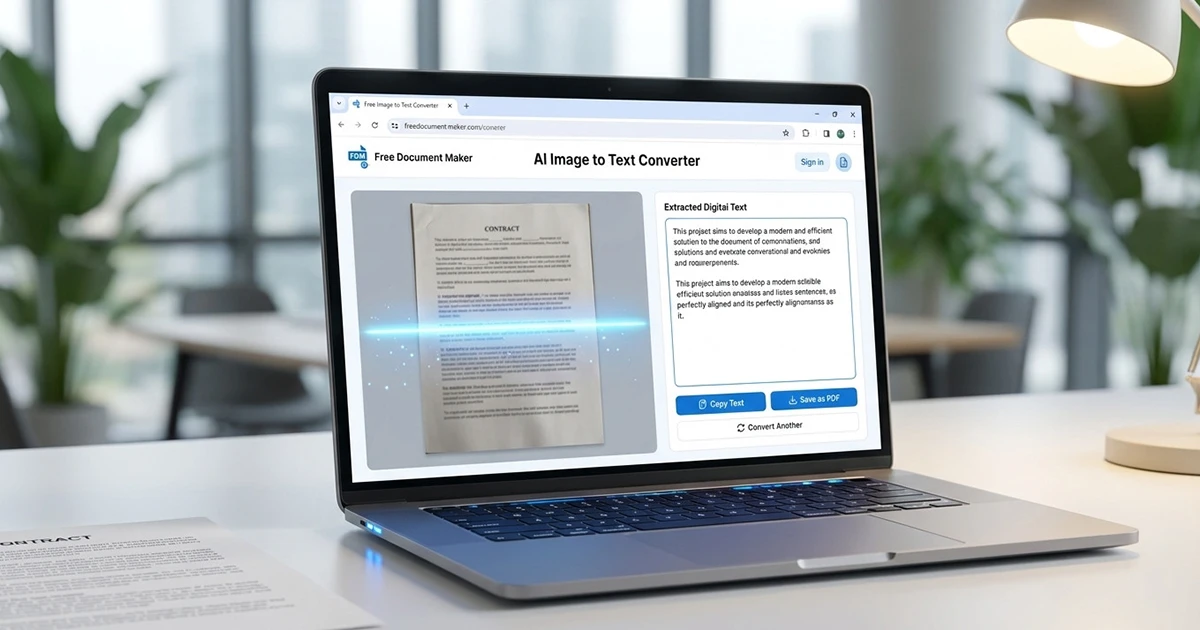
With the FDM AI Image to Text Converter, you can extract editable text from any visual format directly inside your web browser. It is 100% free, requires no account registration, and processes all data locally using client-side WebAssembly—so your private documents never leave your device.
In this comprehensive guide, you will discover how client-side AI Optical Character Recognition (OCR) works, explore key benefits of privacy-first extraction, review best practices for achieving 100% accuracy, and learn how to integrate image-to-text workflows into your daily document routine.
What is an AI Image to Text Converter (OCR)?
An AI Image to Text converter uses advanced Optical Character Recognition (OCR) technology and machine learning algorithms to scan image files, recognize character shapes, and translate visual pixel data into readable, editable digital text.
+-------------------------------------------------------------------------+
|                    CLIENT-SIDE AI OCR PIPELINE                          |
+-------------------------------------------------------------------------+
|  [ Select Image ]  -->  [ Local Pre-processing ]  --> [ WebAssembly OCR ]|
|  (JPG, PNG, WEBP)       (Contrast & Binarization)   (Local RAM Engine)  |
|                                                              |          |
|                                                              v          |
|  [ Copy / Export ] <--  [ Layout Reconstruction ] <-- [ Text Clean-up ] |
|  (TXT, Word, PDF)       (Line Breaks & Structure)   (Accuracy Check)    |
+-------------------------------------------------------------------------+
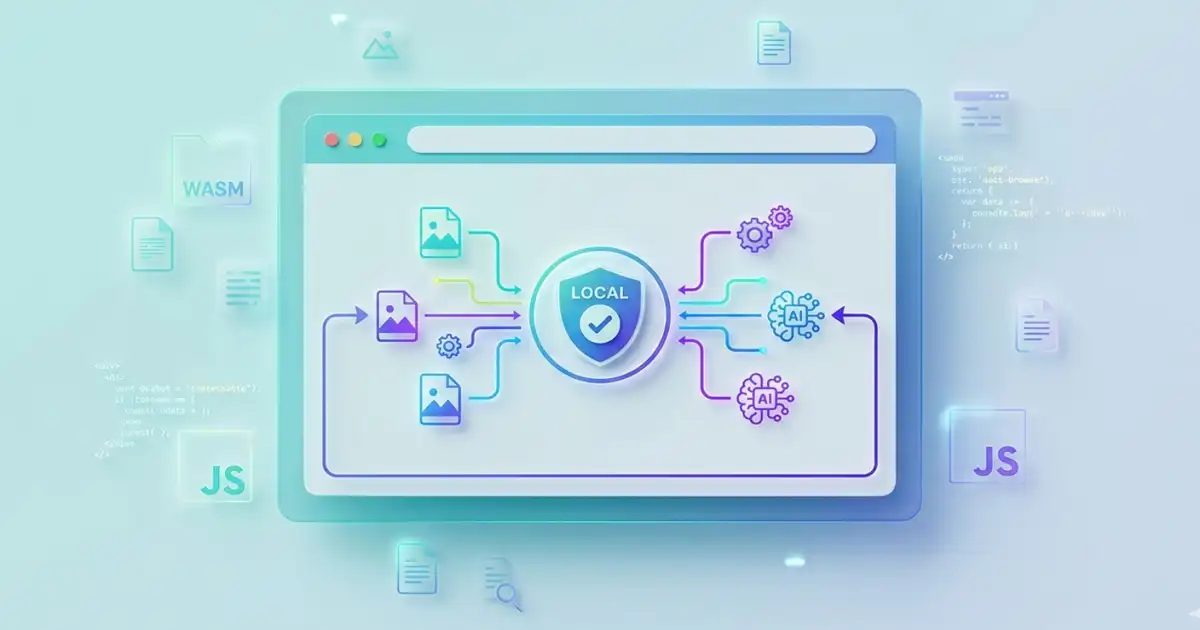
Traditional web-based converters require you to upload your image to a remote cloud server where external hardware processes the file and sends the text back. In contrast, modern client-side OCR loads lightweight, browser-optimized neural recognition engines directly into your local browser session. All character processing, layout analysis, and text cleanup occur locally in your computer or smartphone’s memory (RAM).
Why Use a Privacy-First, Client-Side OCR Tool?
While hundreds of online OCR utilities exist across the web, most lock core capabilities behind monthly subscription paywalls, impose restrictive daily conversion quotas, or collect uploaded user files for background server logging.
Here is why using the Free Document Maker Image to Text Converter provides a safer, faster, and more reliable solution:
1. 100% Private & Secure (Zero Server Uploads)
Your privacy comes first. Because all processing runs locally via JavaScript and WebAssembly inside your browser tab, your uploaded images, confidential financial reports, legal contracts, or identity cards are never sent across the internet. No external server logs, stores, or analyzes your files.
2. Instant Access — No Signup or Subscriptions
Forget forced email signups, password creation, or credit card trials. Open the tool, drop your file, and extract your text immediately without delays or account verifications.
3. Multi-Format & Multi-Language Support
Easily process a wide variety of visual file types and global scripts:
Image Formats: JPG, JPEG, PNG, WEBP, and scanned document images.
Scanned Files: Extract text from single-page or multi-page PDF document scans.
Global Languages: Supports English, Bengali, Spanish, French, German, and over 50+ global languages via browser-optimized recognition models.
4. Unlimited Free Usage
No artificial limits on daily uploads or character counts. Extract text from as many screenshots, pages, or document snaps as your workflow requires.
Feature Comparison: Client-Side OCR vs. Cloud-Based OCR
Feature | Free Document Maker OCR | Cloud-Based OCR Services | Desktop OCR Software |
Login / Registration | Not Required | Mandatory Email Signup | License Key Required |
File Privacy | 100% Local (RAM Only) | Uploaded to Remote Server | Stored on Local Hard Drive |
Processing Speed | Instant (No Upload Wait) | Depends on Network Speed | Fast |
Subscription Fees | 100% Free Always | $10–$30 / Month | $100–$200 One-time |
Cross-Platform Access | Any Browser & Mobile | Any Web Browser | Desktop OS Only |
How to Extract Text from an Image Online (Step-by-Step)
Converting visual media into copyable text takes only a few seconds using the Free Image to Text Tool:
Step 1: Upload or Drop Your Image File
Navigate to the Image to Text Converter page in Chrome, Firefox, Safari, Edge, or Brave. Drag and drop your image directly into the designated dropzone, or click to upload a photo from your device camera or gallery.
Step 2: Instant AI Scanning & Extraction
Once selected, the local browser engine automatically pre-processes the file—adjusting contrast, binarizing dark/light regions, and sharpening character boundaries. The OCR engine reads the text in real time.
Step 3: Copy, Format, or Export
When processing completes:
Click Copy to Clipboard to paste your extracted text directly into emails, notes, or code editors.
Or open your text in our full AI PDF Suite to build, format, and download structured PDF or Word documents.
Best Practices for Achieving 100% OCR Accuracy
While browser AI models are highly capable, input quality directly impacts text extraction fidelity. Follow these simple tips to maximize accuracy:
Use High Resolution (300 DPI+): Ensure scanned paper documents or photos have clear, crisp typography. Low-resolution images can blur letter curves.
Ensure Uniform Contrast: High contrast between dark text and a light background delivers the highest character recognition accuracy.
Crop Tightly: Trim away unnecessary margins, dark table surfaces, or background clutter before running extraction.
Fix Blurry Images First: If your scanned text is pixelated or out of focus, sharpen letter edges using our PDF Enhancer Tool prior to text extraction.
Keep Text Upright: Rotate sideways or upside-down photos so the orientation reads left-to-right or top-to-bottom correctly.
Practical Use Cases for Online Image to Text Conversion
Students & Academics: Convert textbook photographs, whiteboards, or lecture slides into editable study notes without manual transcription.
Business & Accounting: Quickly extract line items, totals, and invoice numbers from physical receipts or scanned bills.
Legal & Administrative: Turn scanned contracts, affidavits, and archived paper files into searchable digital text.
Content Creators & Developers: Copy code snippets, terminal commands, or quote graphics directly from video screenshots.
Frequently Asked Questions (FAQ)
Is this online image to text converter completely free?
Yes. The Free Document Maker Image to Text Tool is 100% free with no registration, no watermarks, and no usage caps.
Does the OCR engine support handwritten text?
Printed text, typed documents, screenshots, and digital signage yield the highest accuracy. Clear, neat handwriting can be extracted, though complex or cursive handwriting may require brief manual editing.
Are my documents stored or logged on any server?
No. All recognition executes locally on your device via JavaScript and WebAssembly. No files or extracted text strings cross the internet or touch external servers.
Can I convert screenshots from mobile phones and tablets?
Yes. You can upload mobile screenshots, camera photos, or web captures directly from any mobile browser or desktop operating system.
What should I do if my original document scan is very blurry?
If your image scan is faded or blurry, use the Free PDF Enhancer to unblur text and clean scanner noise before processing it through the image-to-text engine.
Extract Text from Images Private & Free Today
Stop wasting valuable time retyping text line by line. Experience fast, accurate, and completely private image-to-text extraction directly in your browser.
👉 Open the Free AI Image to Text Converter Now
Edit Your PDF Files Online Instantly
Do not let forced account signups or hidden subscription paywalls slow down your productivity. With a client-side, free online PDF editor no login solution, you maintain complete control over your document privacy, workflow speed, and output quality.
Looking for all PDF tools in one place? Explore the AI PDF Suite to enhance, convert, and manage your documents for free! recover every lost detail.
Ready to make instant edits? Open the Free PDF Editor now.