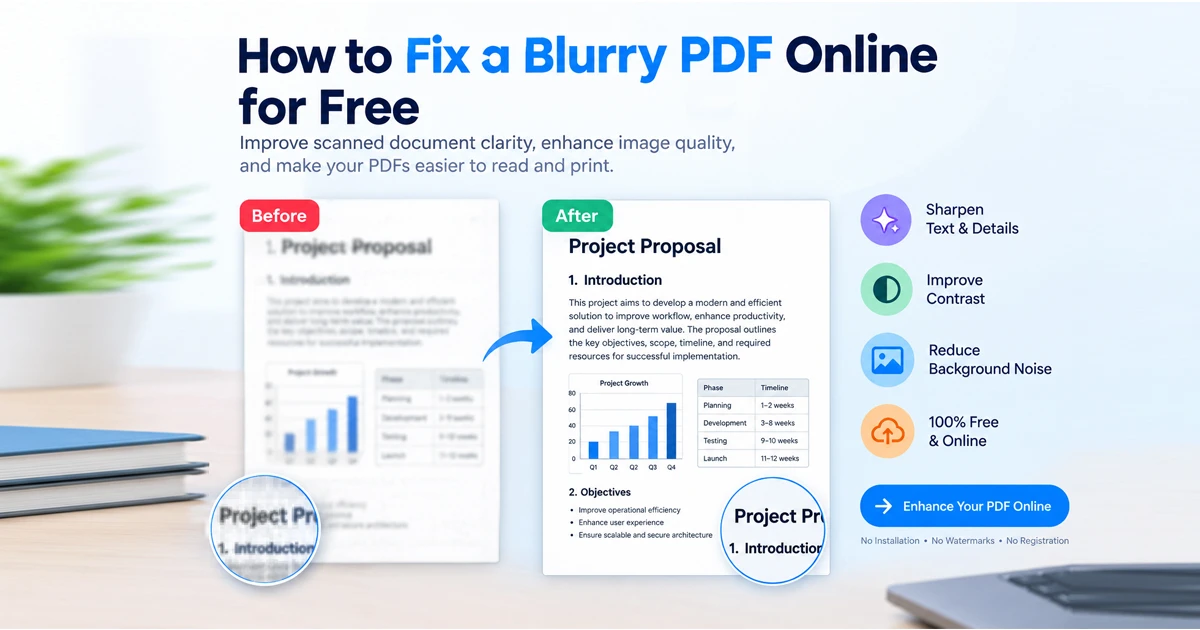
Knowing how to fix a blurry PDF is essential when dealing with fuzzy contracts, unreadable lecture notes, or pixelated scanned pages. A blurry document makes even basic text difficult to read, affects presentation quality, and creates severe problems when printing.
Fortunately, you do not need to rescan paper pages or purchase expensive desktop editing software. Depending on the source and condition of your file, browser-native enhancement techniques can improve contrast, reduce background noise, and sharpen scanned text instantly.
In this guide, you will learn how to fix a blurry PDF online for free, understand why documents lose visual clarity, and choose the right settings to produce clean, high-resolution pages.
Why Does a Document Become Pixelated Before You Fix a Blurry PDF?
Before attempting to enhance a document, identifying what caused the quality loss makes it much easier to fix a blurry PDF effectively.
+-----------------------------------------------------------------------+
|                       COMMON PDF CLARITY ISSUES                       |
+-----------------------------------------------------------------------+
| 1. Low DPI Scanning   -->  Pixelated, jagged text at high zoom levels |
| 2. Aggressive Compression --> Blur artifacts & softened text edges    |
| 3. Low Contrast       -->  Pale ink washed out on gray backgrounds    |
| 4. Small Pixel Base   -->  Stretching small images across large pages |
| 5. Missing Text Layer -->  Raw scanned images lacking OCR sharpness   |
+-----------------------------------------------------------------------+
1. Low-Resolution Scanned Images
When a physical document is scanned at a low resolution, small characters and fine line details are lost. The text appears jagged or fuzzy—especially when zooming in or printing on larger paper formats. This is common with older flatbed scanners, mobile scanning apps, and low-quality camera uploads.
2. Excessive PDF Compression
Many compression tools shrink file size by aggressively lowering image quality. While smaller files are easier to email, heavy compression introduces visible artifacts, softens crisp letter edges, and removes fine lines from scanned pages.
3. Poor Contrast and Faded Ink
Scanned files often suffer from pale text printed over a gray background. Faded printer ink, uneven scanner lighting, dark shadows, and aged paper discoloration make individual letters hard to distinguish.
4. Enlarging a Small Pixel Grid
When a PDF page contains an image with small pixel dimensions, enlarging that image forces the PDF viewer to stretch limited pixel data across a larger canvas. This causes edges to look blocky or soft.
5. Scanned Images Without a Clean Text Vector
Some PDFs consist entirely of raw page images rather than selectable vector text. When these original image scans are unclear, the entire page renders blurry. While Optical Character Recognition (OCR) makes text searchable, it does not automatically improve the underlying visual sharpness of page images.
How to Fix a Blurry PDF Online for Free (5-Step Guide)
You can use an online document processing tool to sharpen fuzzy pages directly inside your web browser.
Step 1: Open the PDF Enhancer
Access the Free Document Maker PDF Enhancer. Upload or drag and drop the document you wish to improve. Keep an untouched backup copy of your original file so you can evaluate the updated quality side-by-side.
Step 2: Identify the Main Quality Problem
Inspect representative pages before applying settings to the full document:
Fuzzy Text: Check if characters are naturally unreadable or simply viewed at an incorrect display zoom.
Gray Backgrounds: Look for dark scanner edges, bleed-through shadows, or paper discoloration.
Faded Writing: Determine if pale text carries enough visible pixel contrast to benefit from black-and-white sharpening.
Pixelation: Verify if the original image resolution supports your target viewing or print size.
Step 3: Apply Enhancement Adjustments
Utilize available browser adjustments to fix a blurry PDF and restore readability:
Increase Contrast: Separate dark text from muddy backgrounds. Avoid extreme settings that make thin punctuation or fine lines disappear.
Enable Grayscale Filter: Remove colored background noise and printer banding to simplify text-heavy pages.
Bleach Scanner Noise: Clean up gray borders and paper yellowing without altering dark character strokes.
Upscale DPI Resolution: Increase image pixel density to prepare pages for high-resolution output.
Privacy Note: Processing through Free Document Maker (FDM AI) executes locally within your client-side browser memory. Your confidential files are never stored or logged on external servers.
Step 4: Preview and Compare
Before saving, compare the enhanced result against the original scan. Examine crucial details such as:
Small font sizes, numbers, and punctuation marks.
Legal signatures, seals, and official stamps.
Table borders, vector lines, and page margins.
Step 5: Download the Enhanced PDF
Once satisfied with the clarity, download the processed file. Open it in a standalone viewer and check page appearance at standard 100% zoom and planned print dimensions.
How to Improve PDF Resolution for Printing
A document that appears acceptable on a mobile screen often looks distorted when printed. Printing clarity relies heavily on hardware DPI capabilities.
What Does DPI Mean for Documents?
DPI (Dots Per Inch) measures how many ink dots a printer places across an inch of paper. The digital equivalent for images is PPI (Pixels Per Inch).
Use these standard DPI benchmarks for scanning and printing tasks:
Output Intended | Recommended DPI | Typical Quality Result |
Basic Screen Viewing | 150 DPI | Acceptable for large text on digital displays |
Standard Printing | 200–300 DPI | Crisp text and clean document layout |
High-Quality Print / Archival | 300+ DPI | Ideal for fine print, schematics, and legal files |
Note: Increasing DPI mathematically increases pixel count, but it works best when original scans retain basic structural detail.
How to Fix a Blurry PDF Without Losing Important Details
Document accuracy must never be sacrificed while improving visual sharpness. Follow these guidelines when working with sensitive financial records, contracts, certificates, or invoices:
Maintain Original Backups: Always keep an unaltered source copy before applying filters.
Avoid Excessive Sharpening: Overprocessing creates harsh halo artifacts around letters, making text harder to read.
Inspect Multi-Page Output: A setting that sharpens page 1 may overexpose page 2. Check every page.
Preserve Important Color Data: Keep color active if your document includes red review notes, highlighted passages, or colored verification stamps.
Verify Numbers & Characters: Double-check financial figures, dates, and names against the original source to ensure strokes were not lost during background bleaching.
Common Mistakes to Avoid When You Try to Fix a Blurry PDF
Upscaling Without Detail Verification: Boosting pixel dimensions on a completely out-of-focus image will not recover missing text.
Applying Extreme Black/White Thresholds: Pushing contrast too high strips away faint handwriting, thin signatures, and decimal points.
Converting Color Schematics to Grayscale: Converting complex charts or annotated documents to black and white erases visual distinction.
Ignoring Target Page Sizes: Scaling an A4 PDF up to poster format without adjusting DPI results in pixelation.
Frequently Asked Questions
How can I fix a blurry PDF online for free?
Visit an online tool like the Free Document Maker PDF Enhancer, upload your document, and adjust contrast or resolution settings to clean up text edges and remove background noise without paywalls or watermarks.
How do I make scanned PDF text sharper?
Adjusting background contrast, applying Laplacian edge sharpening, or converting gray background noise to white isolates dark text, making scanned characters sharp and readable.
Can I increase the DPI of an existing PDF?
Yes. AI PDF upscalers increase the embedded image pixel count and boost output DPI settings. This prepares blurred documents for crisp, high-resolution printing.
Is it safe to fix a blurry PDF containing confidential information online?
Safety depends on document handling architecture. Tools operating entirely client-side inside your web browser process data locally without uploading files to third-party servers, ensuring full privacy for confidential records.
Final Summary
Learning how to fix a blurry PDF saves time and restores unreadable documents without requiring expensive software subscriptions. By identifying the cause of blurriness, applying balanced contrast filters, and increasing pixel density, you can transform low-quality scans into crisp, professional documents.
Ready to sharpen your scanned pages? Open the Free PDF Enhancer now to upscale document quality instantly in your browser.
To get started, visit the Free Document Maker PDF Enhancer and explore the available options for improving your scanned PDF documents.
Improve your PDF's readability with a practical, quality-first approach—without assuming that increasing resolution can