Turn any video into high-quality audio in seconds — without draining your battery, killing your mobile data plan, or cluttering your local storage drive.
Imagine you are listening to a complex, multi-hour educational podcast, an unforgettable live indie concert bootleg, or a critical professional development lecture online. The content is invaluable, but keeping your screen active on your smartphone while commuting or exercising drains your battery, heats up your device, and consumes vast amounts of unnecessary video bandwidth.
You do not need the video frames; you simply need the audio data.
This is where a modern Video-to-MP3 converter becomes an essential asset. Far from being simple, single-use utilities, today’s advanced media conversion platforms bridge the gap between heavy video containers and ultra-portable, highly optimized audio formats.
In this comprehensive, deep-dive guide, we will break down the underlying mechanics of media demuxing, evaluate the pros and cons of different tool architectures, explore industry-leading options, and provide a clear framework to help you choose the safest, fastest tool for your workflow.
⚙️ The Technical Blueprint: How Video-to-MP3 Conversion Works
To appreciate why different tools yield varying levels of audio fidelity, it helps to understand what happens under the hood when a file transitions from a video format to a standalone audio format.
A standard video file (such as an .mp4, .mov, .mkv, or .webm) is not actually a single cohesive block of data. Instead, it is a digital media container. Inside this container, multiple independent data paths travel alongside each other, synchronized by timestamps:
The Video Stream: Encoded using codecs like H.264, H.265 (HEVC), or VP9 to compress visual frames.
The Audio Stream: Encoded using codecs such as AAC, MP3, Opus, or PCM to store sound waves.
Metadata Layers: Holding structural information like subtitles, chapters, language tags, and structural timestamps.
When you process a file through an advanced converter, the software performs a sequence known as demultiplexing (demuxing) and transcoding:
[ Input Video Container (.mp4) ]Container Unpacking: The tool reads the structural map of the container file.
Stream Separation: It completely isolates and separates the visual data track from the audio stream. The visual data is cleanly discarded, dropping the overall file footprint by up to 90%.
Audio Extraction & Transcoding: The tool reads the raw or compressed audio data. If the destination format matches the internal source codec, it performs a clean pass-through extraction. If you request a different format (like converting an AAC audio track inside an MP4 into an MP3 file), a transcoding engine decompresses the original audio and re-encodes it into the universally compatible MPEG-1 Audio Layer III (MP3) format.
🛠️ Cross-Platform Ecosystem Matrix: Web vs. Desktop vs. Mobile
No single conversion environment answers every scenario. The ideal utility depends entirely on your immediate hardware constraints, file volumes, and data security standards.
Environment Category | Best Optimization Target | Key Operational Advantages | System Constraints & Disadvantages | Performance Rating |
Web-Based Software | One-off extraction tasks, rapid zero-install processing, cross-device agility. | No localized software installs; operational on any modern browser; zero hardware dependency. | Subject to network bandwidth limits; file size caps on legacy platforms; ad-exposure risks on low-tier sites. | 8.5 / 10 |
Desktop Software | Massive enterprise batches, multi-gigabyte files, deep granular parameter editing, offline workflows. | Unmatched local rendering speeds; comprehensive codec libraries; complete data privacy; functions 100% offline. | Consumes local drive space; hardware-bound processing speeds; requires intentional installation and updates. | 9.5 / 10 |
Mobile Applications | Immediate ringtone creation, quick media clipping, content ingestion directly on mobile devices. | Exceptional structural convenience; direct access to system photo roll; immediate native sharing paths. | Limited complex audio mixing options; can consume mobile battery quickly during dense audio transcoding passes. | 8.0 / 10 |
🏆 The Premier Online Audio Toolkit: Free Document Maker (FDM)
When analyzing web-based conversion tools, the landscape has evolved significantly. Legacy websites often rely on remote server-side uploads, forcing you to send your private media files to external servers.
The Free Document Maker (FDM) suite completely disrupts this model by deploying highly targeted, browser-optimized, client-side digital tools that operate directly within your device's browser memory.
Let's look at the specific, specialized utilities available within the FDM ecosystem that cater to diverse audio management requirements:
1. The Core Engine: FDM AI MP4 to MP3 Converter
For standard media workflows, the dedicated MP4 to MP3 tool provides clean, lossless extraction. Because it processes media files locally via advanced browser engines, a multi-megabyte video file converts instantly without consuming network upload data. It is completely watermark-free and leaves your original audio data entirely untouched.
2. The Universal Workplace: FDM AI All-in-One Audio Converter
When your requirements expand beyond basic MP4 files, the universal audio converter acts as a broad-spectrum media matrix. It handles cross-conversions between a massive array of professional extensions including WAV, M4A, AAC, FLAC, and OGG, making it an indispensable resource for handling diverse media formats.
3. The Digital Extraction Node: FDM YouTube to MP3 Converter
When you need to pull high-quality educational programming, open-source audio resources, or public domain lectures from streaming video archives, this dedicated utility safely processes public video links, transforming them into cleanly indexed, downloadable local MP3 audio tracks.
4. For Creators: FDM MP3 to Art Track Maker
Conversion works both ways. If you have an extracted MP3 track and need to reverse the process to prepare it for video platform distribution, this creative tool anchors your high-fidelity audio track to a static high-definition graphic card, instantly outputting a broadcast-ready video file.
5. Ambient Asset Engine: FDM Free Lo-Fi Generator
When you need custom, copyright-clean backing audio tracks for focus sessions, study routines, or video background fillers, this built-in generative platform uses unique algorithms to assemble customized ambient audio tracks that you can easily convert and deploy across your multimedia projects.
🌟 5 Essential Technical Pillars of a Great Converter
To protect yourself from low-tier software options that degrade your audio quality, ensure your chosen tool implements these core standards:
Granular Bitrate Selection: Bitrate measures the volume of data processed per second of audio. Low-grade utilities lock output at a muddy 128 kbps. Premium tools offer choices extending up to 320 kbps (Constant Bitrate - CBR) or optimized Variable Bitrate (VBR) profiles to maintain maximum acoustic clarity across the frequency spectrum.
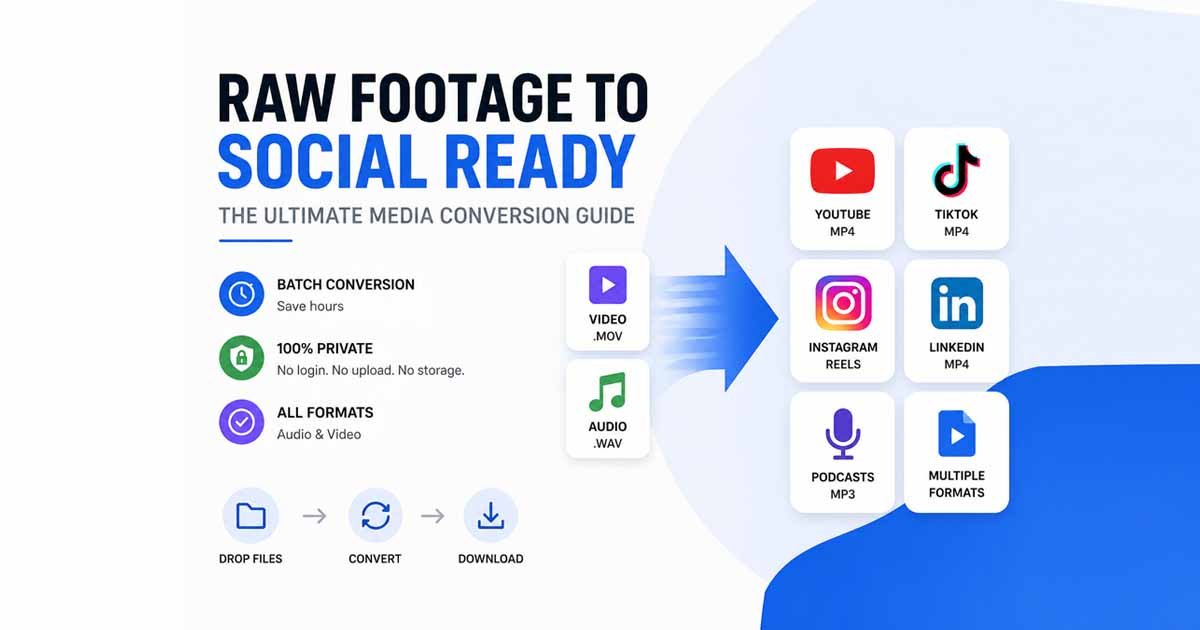
True Client-Side Execution: Modern web apps use cutting-edge web compilers to run desktop-grade engines directly inside the browser tab. This design means your media files never leave your computer, delivering bulletproof privacy and near-instant processing.
Precision Non-Destructive Trimming: Avoid software that forces you to convert an entire multi-hour file just to save a short sound bite. High-quality platforms include an integrated timestamp cutter so you can select the exact window you want to extract before processing begins.
Massive Batch Pipelines: If you are processing a semester's worth of recorded classroom lectures or a multi-part seminar series, look for a tool that handles concurrent multi-file queues to save your system time.
Comprehensive ID3 Metadata Injection: Clean files need clean labeling. A great converter allows you to write structural ID3 tags (Title, Track Number, Album Art, Artist) directly into the final MP3 container, ensuring seamless integration into system media players.
⚙️ How to Convert Video to MP3: Step-by-Step Walkthroughs
Approach A: The Fast, Frictionless Web Route (Via FDM AI Tools)
For standard daily workflows, utilizing a client-side web application delivers the fastest path from video file to downloadable audio asset.
1.Navigate to the Interface:Step 1.
Open your web browser and navigate directly to the targeted FDM MP4 to MP3 Converter or the global All-in-One Audio Converter interface.
2.Stage the Source Video File:Step 2.
Drag your local source video container directly over the drop-zone interface, or click the file upload prompt to select your video file via the local system explorer.
3.Configure Target Encoding Settings:Step 3.
Select MP3 as your core destination format. Access the advanced parameters menu to elevate your target quality profile to 320 kbps for high-fidelity output.
4.Set Boundaries and Convert:Step 4.
If you only need a segment of the audio track, use the visual trimming sliders to isolate your preferred timestamps. Once configured, initiate the transformation by clicking the Convert button.
5.Commit Local Download:Step 5.
The engine completes the rendering pass directly inside your browser cache. Click the resulting Download link to commit the finalized, clean MP3 audio file straight to your local storage drive.
Approach B: The Advanced Local Power-User Route (Via FFmpeg CLI)
For developers, system administrators, or power users looking to automate heavy audio processing pipelines, compiling transformations via the terminal provides unparalleled speed and control.
Open your terminal interface and execute the following optimized, non-destructive extraction string:
Bash
ffmpegLet's break down exactly what this specialized command tells the terminal engine to do:
-i source_lecture.mp4: Defines the incoming target video file container.-vn: Completely disables the video recording engine, ensuring visual frames are discarded entirely from the output pipeline.-q:a 0: Sets a high-fidelity Variable Bitrate (VBR) audio profile (equivalent to peak native audio rendering quality).-map a:0: Directs the tool to explicitly target the primary audio stream while ignoring data noise or secondary metadata layers.finalized_audio.mp3: The structural name and format extension of your finished output file.
⚠️ Digital Security and Legal Safeguards
When working with multimedia converters, maintaining digital safety vigilance prevents system exposure to online vulnerabilities.
1. Recognizing Malicious Ad Architecture
Legacy online video conversion portals frequently partner with low-tier advertising networks to generate revenue. Be highly suspicious of sites that employ misleading user interface designs, such as displaying five different green "Download" buttons that are actually sponsored links.
If a platform forces browser notification opt-ins, attempts to redirect your browser tab toward tracking networks, or prompts you to run a standalone .exe, .msi, or .dmg installer package just to give you a basic audio file, close the browser window immediately.
Modern platforms like the Free Document Maker (FDM AI) network show how clean web tools should run: executing processes in local memory without intrusive ad loops or executable software installations.
2. Staying Within Copyright Law Boundaries
Intellectual property compliance is an essential part of managing media files. Stripping audio from public video platforms is fully legal when you own the original recording, are working with public domain materials, or are dealing with assets published under standard Creative Commons attribution frameworks.
While personal archival backups of purchased content generally fall within fair-use exceptions in several regions, compiling and redistributing copyrighted material without clear authorization violates platform terms of service and international copyright protections. Always ensure your extraction workflows align with local intellectual property statutes.
💬 Frequently Asked Questions (FAQ)
Q: Does converting an MP4 container file to an MP3 format degrade the audio quality?
A: If your source video file uses a lossy audio format (like AAC) and you transcode it into another lossy format (like MP3), a minor mathematical generation loss occurs. However, by selecting a high-fidelity rendering target like 320 kbps, the final audio output remains crisp and virtually indistinguishable from the original studio stream to the human ear.
Q: Can I run these FDM conversion tools safely on mobile operating systems?
A: Yes. Because the underlying FDM utility ecosystem is engineered on cross-compatible, standards-compliant web code, tools like the FDM Audio Converter run beautifully inside mobile browsers like Safari on iOS or Chrome on Android devices, without needing a dedicated app download.
Q: What is the main difference between an MP3 file and a WAV file?
A: An MP3 file is a compressed audio format that discards imperceptible audio frequencies to deliver incredibly small file footprints, making it perfect for portable storage. A WAV file is an uncompressed audio standard that preserves every bit of data, making it ideal for professional studio production, though it results in significantly larger file sizes.
🎧 Streamline Your Media Workflow Today
Transitioning video assets into light, responsive, and organized audio files should never feel like a chore or a security gamble. By shifting away from outdated, ad-heavy legacy conversion sites and leveraging modern, client-side digital environments, you can safeguard your data privacy while unlocking excellent audio performance across all your devices.
Bookmark this comprehensive reference guide for your future media projects, and check out the Free Document Maker Suite to see how easy, clean, and fast web-based conversions can be.
👇 Join the Conversation!
What types of content do you convert most often? Are you converting academic lectures for your morning commute, saving background tracks via the Lo-Fi Generator, or turning phone video clips into custom ringtones?
Share your tips and workflows in the comments section below!
If you found this guide valuable, share it with colleagues, students, or friends who want to listen to their favorite media on the go without killing their battery or data plans.
Last updated: May 2026